

Loading your page…
Loading your page…

A little easier next time
Add a shortcut to your phone’s Home Screen so your next visit starts with a tap.
No app store download needed. You’ll still need an internet connection and may be asked to sign in to My Trips.
Open BookParkByMe in Safari on iPhone or Chrome on Android, then follow the steps below. Save the home page so your shortcut is ready for every trip.
Coming from an email? Use its menu to open the link in your browser if it opens inside your mail app.
Follow the highlighted controls. These illustrations show the key steps; menu wording and positions may vary by phone.
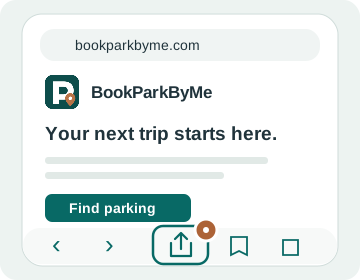 Open the Share menu
On the BookParkByMe home page, tap the Share icon—the square with an arrow pointing up. You may need to open Safari’s page menu or More menu first.
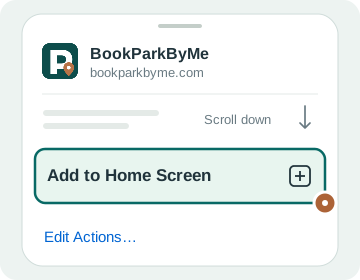 Choose Add to Home Screen
Scroll through the sharing options to find it. If it’s missing, look under Edit Actions.
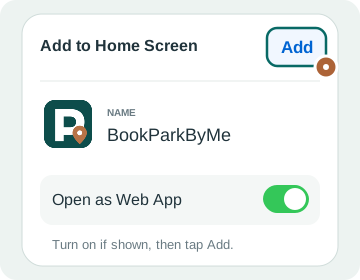 Make it yours
Name it BookParkByMe, leave Open as Web App on if offered, then tap Add.
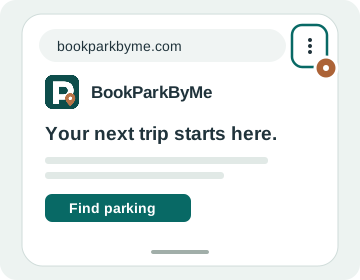 Open Chrome’s menu
On the BookParkByMe home page, tap the three dots beside the address bar.
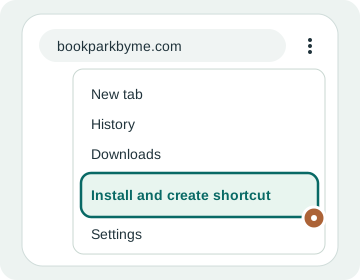 Choose the shortcut option
Tap Install and create shortcut, then Create shortcut. Some versions call this Add to Home screen or Install app.
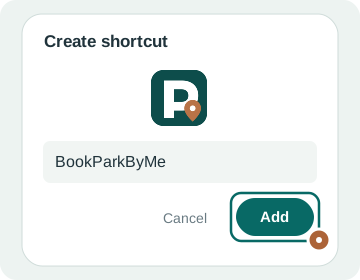 Add BookParkByMe
Confirm the name and tap Add, or follow the install prompts shown on your phone.
Open the BookParkByMe home page. In Safari, choose Add Bookmark to from the page menu, or touch and hold the bookmarks icon and choose Add Bookmark. In Chrome on Android, open the three-dot menu and tap Add to bookmarks (the star).
On a computer, press ⌘ + D on Mac or Ctrl + D on Windows.
Use the email address you booked with to view your reservation and parking instructions. Keep your confirmation email for travel day, too.